

Live Search theme selectors
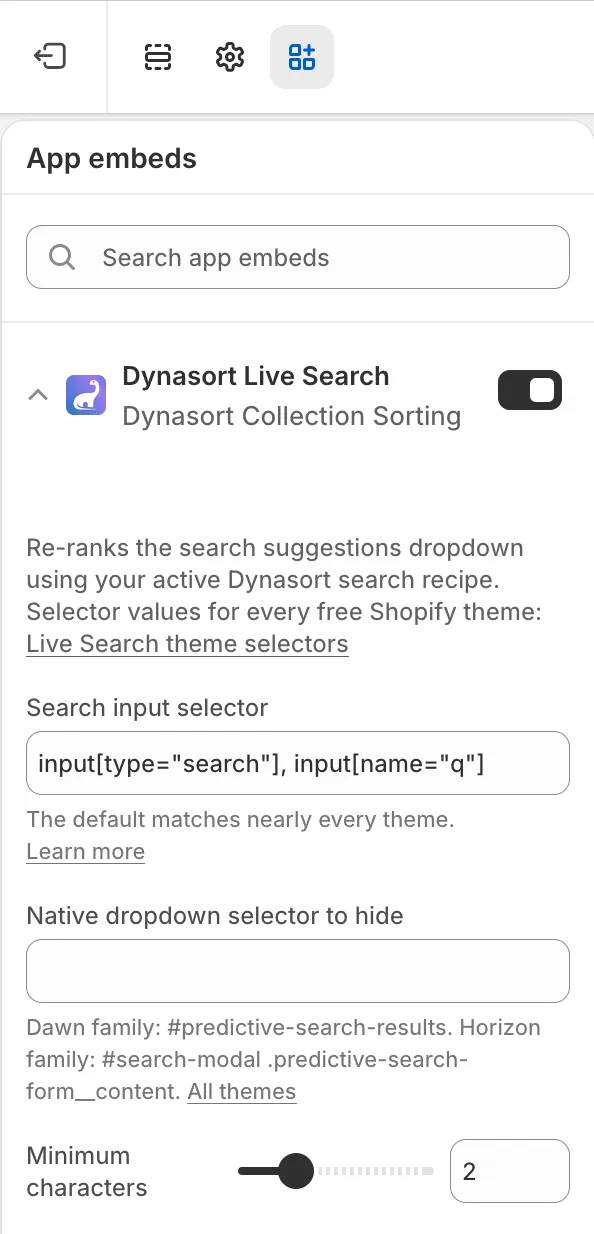
The Dynasort Live Search app embed re-ranks the suggestion dropdown that appears while a shopper types. To do that on any theme, it needs to know two things, both set in the theme editor under Theme settings → App embeds → Dynasort Live Search:
- Search input selector: which search box(es) to attach to. The default (
input[type="search"], input[name="q"]) matches nearly every theme, including all of Shopify’s free themes. You almost never need to change it. - Native dropdown selector to hide: your theme ships its own suggestion panel. Without this setting, both panels appear stacked on top of each other. Set it to your theme’s suggestion container and Dynasort’s re-ranked suggestions take over cleanly.
Selectors by theme
Section titled “Selectors by theme”| Theme | Search input selector | Native dropdown selector to hide |
|---|---|---|
| Dawn, Craft, Sense, Studio, Refresh, Spotlight, Ride, Taste, Crave, Origin, Colorblock, Publisher | (leave default) | #predictive-search-results |
| Horizon, Savor, Tinker, Beyond, Vessel | (leave default) | #search-modal .predictive-search-form__content |
On the Horizon family, search opens in a full modal rather than a dropdown. Dynasort detects this and renders its suggestions inside the modal, right where the theme’s own results would have appeared. No extra configuration is needed beyond the selector above.
This table grows as we verify more themes. If your theme is not listed, email us at hello@dynasort.io with your theme’s name and we will test it and add it here.
Finding the selectors on any other theme
Section titled “Finding the selectors on any other theme”- On your storefront, right-click the search box and choose Inspect.
- Check the highlighted
<input>element. If it hastype="search"orname="q", the default input selector already matches and you can leave it alone. - Type a couple of characters so your theme’s own suggestions appear.
- In the inspector, find the container element that holds those suggestions and note its
idor a distinctive class. - Enter it in the embed’s Native dropdown selector to hide field, prefixed with
#for an id (for example#predictive-search-results) or.for a class. - Save, reload the storefront, and type again. You should see one suggestion panel: Dynasort’s.
Troubleshooting
Section titled “Troubleshooting”- Two suggestion panels stacked: the hide selector is empty or does not match. Re-check step 4 above.
- No suggestions at all: the input selector does not match your theme’s search field. Inspect the input and adjust.
- Suggestions appear but the theme’s panel container leaves an empty gap: some themes reserve space for their panel. Contact support with your theme name; a small CSS override usually resolves it.
- Results-page grid works but the dropdown does not: the results grid is a separate app block; the dropdown comes from this embed. Confirm the embed is toggled on in Theme settings → App embeds.
Frequently asked questions
Which two settings does the Dynasort Live Search embed need?
A search input selector, which tells it which search box to attach to, and a native dropdown selector to hide, which removes the theme's own suggestion panel so only Dynasort's re-ranked suggestions appear. Both are set under Theme settings, App embeds, Dynasort Live Search.
Which hide selector do Dawn and the other free Shopify themes use?
For Dawn, Craft, Sense, Studio, Refresh, Spotlight, Ride, Taste, Crave, Origin, Colorblock and Publisher, leave the input selector at its default and set the hide selector to #predictive-search-results.
Which hide selector do Horizon-family themes use?
For Horizon, Savor, Tinker, Beyond and Vessel, set the hide selector to #search-modal .predictive-search-form__content. Dynasort detects the Horizon search modal and renders its suggestions inside it.
Why do I see two suggestion panels stacked?
The hide selector is empty or does not match your theme's suggestion container. Inspect the container that holds the theme's suggestions, note its id or class, and enter it prefixed with # for an id or . for a class.
Do I need to change the search input selector?
Almost never. The default, input[type="search"], input[name="q"], matches nearly every theme including all of Shopify's free themes.
My theme is not in the table. What should I do?
Follow the inspect steps on this page to find the selectors yourself, or email hello@dynasort.io with your theme's name and the Dynasort team will test it and add it to the table.